Building an Upload Component the Right Way
A behind-the-scenes breakdown from DesignXP Apprenticeship x DesignOps Studio
👋 Hey, before we start
This doc is for two kinds of people:
Designers who want to learn how to build design system components the right way (tokens, variants, naming, all of it).
Founders / Devs who are building AI-native products and want to plug a mature design system directly into their workflow via MCP.
If you're either (or both), keep reading. Every step has a real link, real tutorial, and real file you can open right now.
🎯 What we're building
An Upload component with 3 real product states:
Default— empty, waiting for a fileDragger— user is dragging a file over the drop zoneDisabled— upload is locked
Sounds simple. But the way you build it determines whether your dev team (or your AI agent) can actually use it without breaking everything.
You can then apply this workflow to the rest components in your design ystem.
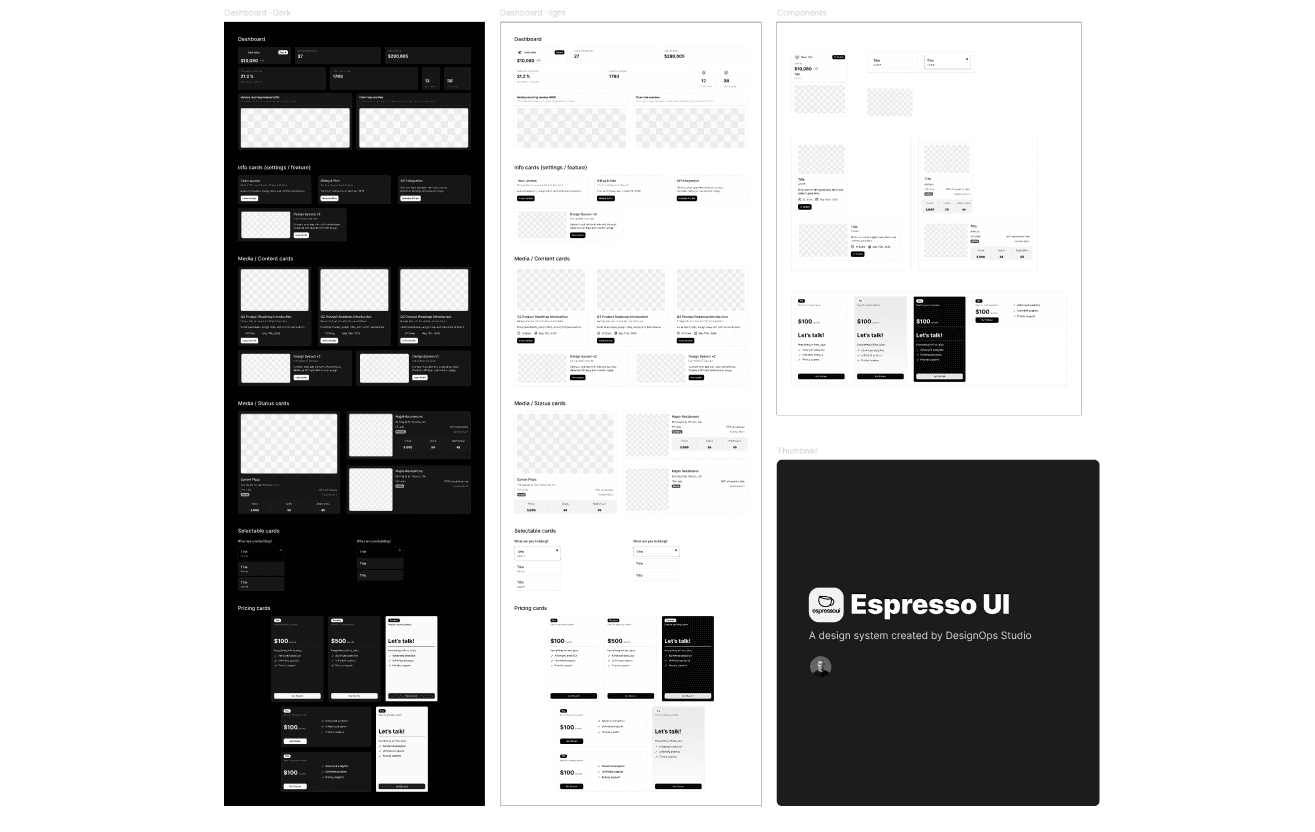
Step 1: Draw the box, but use Tokens (not random hex)
When I draw the upload box, every value comes from a variable:
Border radius →
radius/mdPadding →
spacing/4Border color →
border/defaultBackground →
surface/subtle
No #F4F4F5. No 12px. No magic numbers.
Why tokens?
Tokens are the bridge between Figma and code. When the dev updates --border-default in Tailwind, your Figma file should automatically update too. That's only possible if you're using variables, not hardcoded values.
🔗 Resources to learn Figma Variables & Tokens:
📺 Sergei Chyrkov — Build a Figma Design System with Variables & Tokens (full tutorial)
📺 Turn Figma Variables into an npm Package — Tokens Studio tutorial
📖 Design Tokens Workflow in Figma — A practical guide (Medium)
🎨 Free Figma files to copy:
🧩 Plugins I use:
Tokens Studio for Figma — manage tokens like code
Variables Importer — bulk import JSON tokens
Design Lint — catches hardcoded values
Step 2 — Convert to Component, then add Variants
Once the box looks right, I turn it into a Component (⌥ + ⌘ + K). Then I add Variants, one per real product state.
Why this matters for AI
When the AI agent reads your component, it sees:
…and immediately knows how to map this to React props:
If your variants are named "Variant1, Variant2, Variant3", the AI has no idea what they mean. Garbage in, garbage out.
🔗 Resources on Variants:
Step 3: Properties (toggles for the dev team)
I add boolean and instance-swap properties so teams can toggle pieces without breaking the component:
Show icon(boolean)Show helper text(boolean)Icon(instance swap)Label text(text)
This is what separates a design file from a design system. Variants control states. Properties control content.
Step 4 — Layer naming (the most important step)
This is where 90% of design systems fail.
❌ Bad: Frame 123, Rectangle 18, Group 4 copy 2
✅ Good (shadcn/ui style):
Why naming = AI readability
When you connect Figma to an AI agent (via MCP), the agent reads your layer names and uses them to generate React components, classnames, and even ARIA labels.
If your layer is called "Rectangle 18", the AI generates <div className="rectangle-18">. Useless.
If it's called "upload-icon-wrapper", you get <div className="upload-icon-wrapper">. Production-ready.
🔗 Layer naming resources:
Step 6: Make it AI-readable (the Espresso UI way)
This is the part most design systems skip. We don't.
Once the component is built, we connect it to AI agents through MCP (Model Context Protocol) — so any LLM (Claude, Cursor, Copilot, v0) can read the component, understand it, and use it correctly.
What MCP does
MCP is a standard that lets AI tools talk to Figma directly. The agent can pull:
Variables (your tokens)
Components (your Upload, Button, Input)
Layout data (auto-layout, spacing, sizing)
…and generate code that matches your design system exactly.
🔗 MCP resources:
🛠 MCP repos to explore:
Free shadcn/ui Figma kits to start from
If you want to skip the setup and start from a real, production-ready system:
The full tool stack I use daily
Tool | What for |
|---|---|
Design + Variables | |
Token management | |
AI code editor with MCP | |
Terminal-based AI agent | |
Generate UI from prompts | |
Component code source of truth | |
Utility-first styling that maps cleanly to tokens |
If this helped, the best thank you from you is a follow + share with one designer friend who needs to see it! More breakdowns coming weekly!!!
— Serena